The Sensors tab will show which body region sensors are not yet assigned.
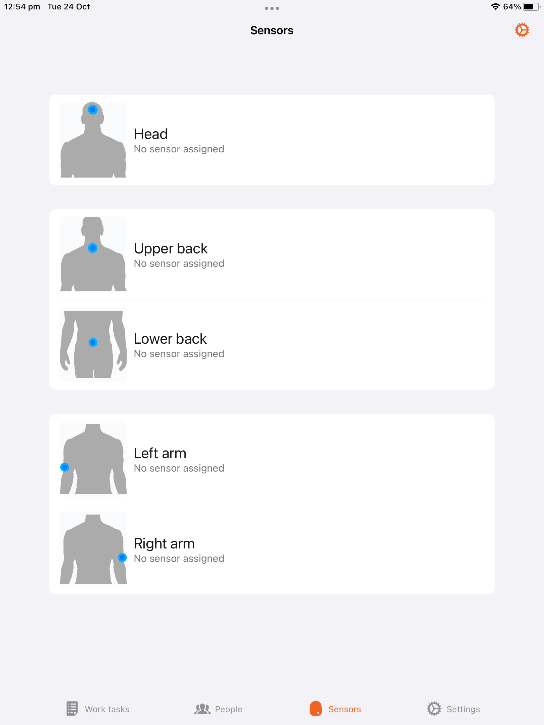
Click Assign sensors to start the process. The Etiscope app will immediately start looking for sensors in the vicinity of the iPad. Where there are more than 5 sensors it will lock onto the 5 closest sensors. Should it pick up any incorrect sensors move the spare sensors out of range and restart the process.
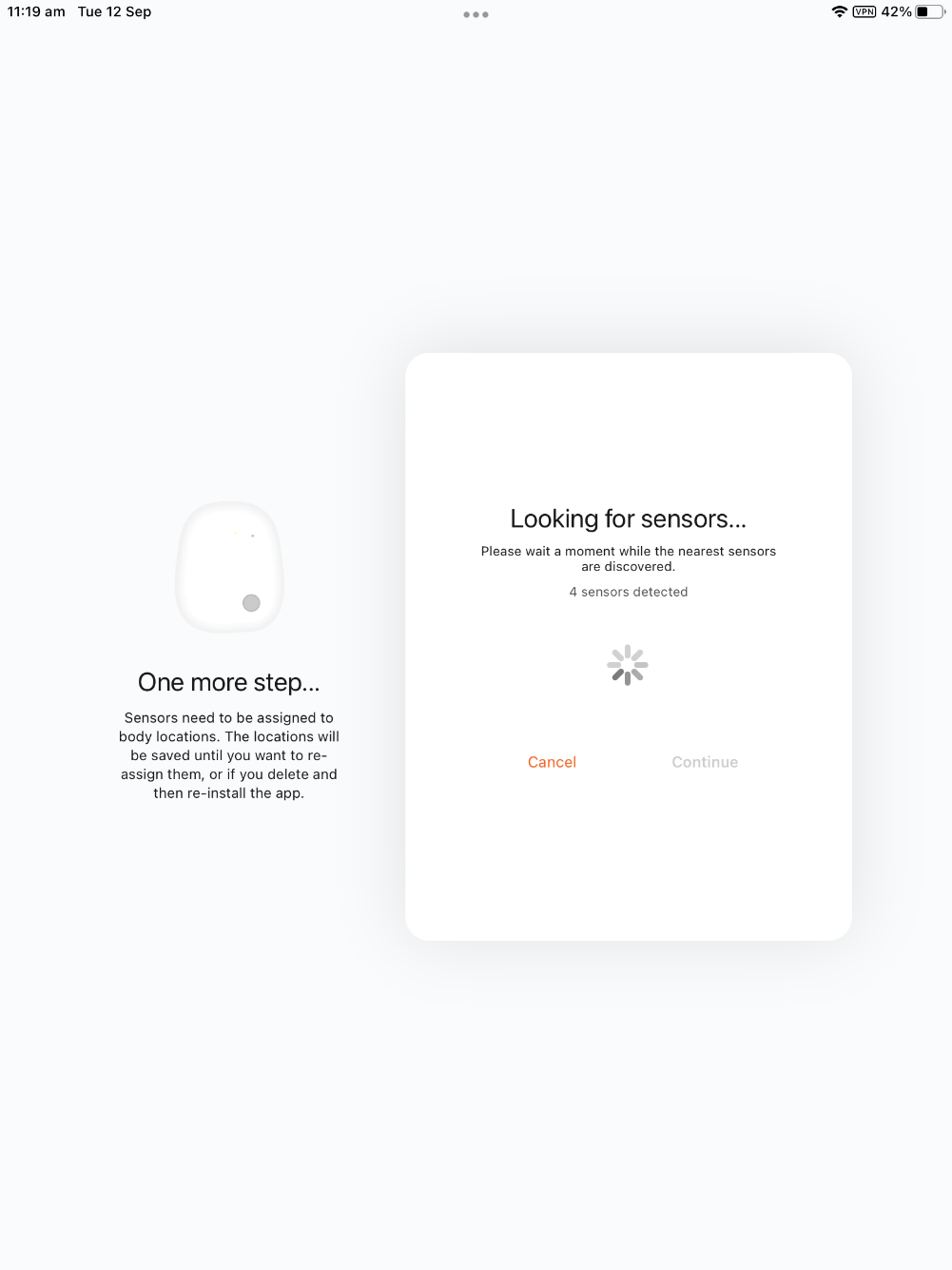
Once it has located 5 sensors the sensors will have their blue light turned on. Should the Etiscope app fail to find the sensors ensure they are charged and try again. The Etiscope app will prompt for confirmation of which sensor should be assigned to which body region starting with Head. Pick up the sensor marked Head and click the grey button. The blue light will turn green confirming that the Etiscope app has successfully assigned the sensor to the Head region.
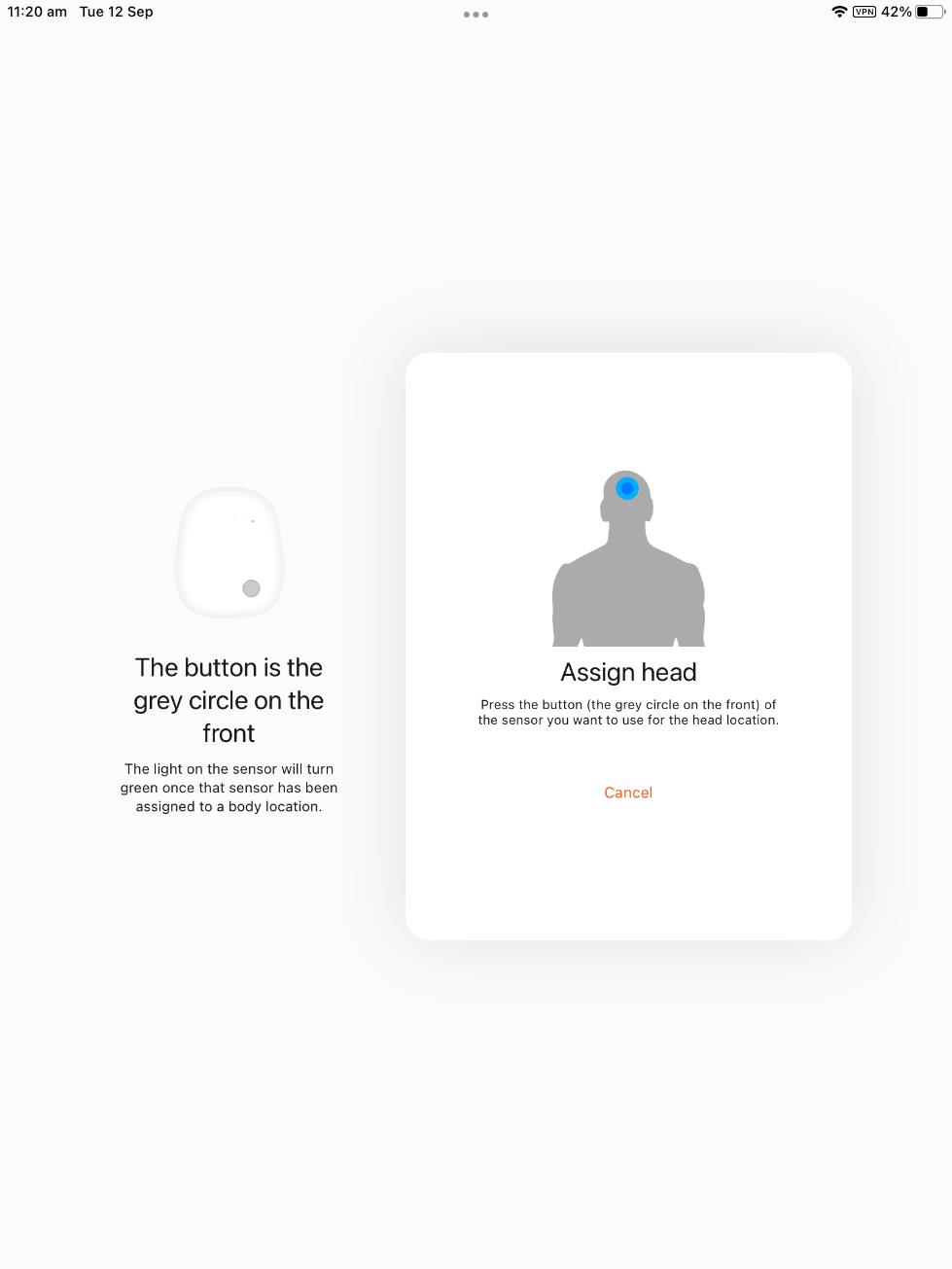
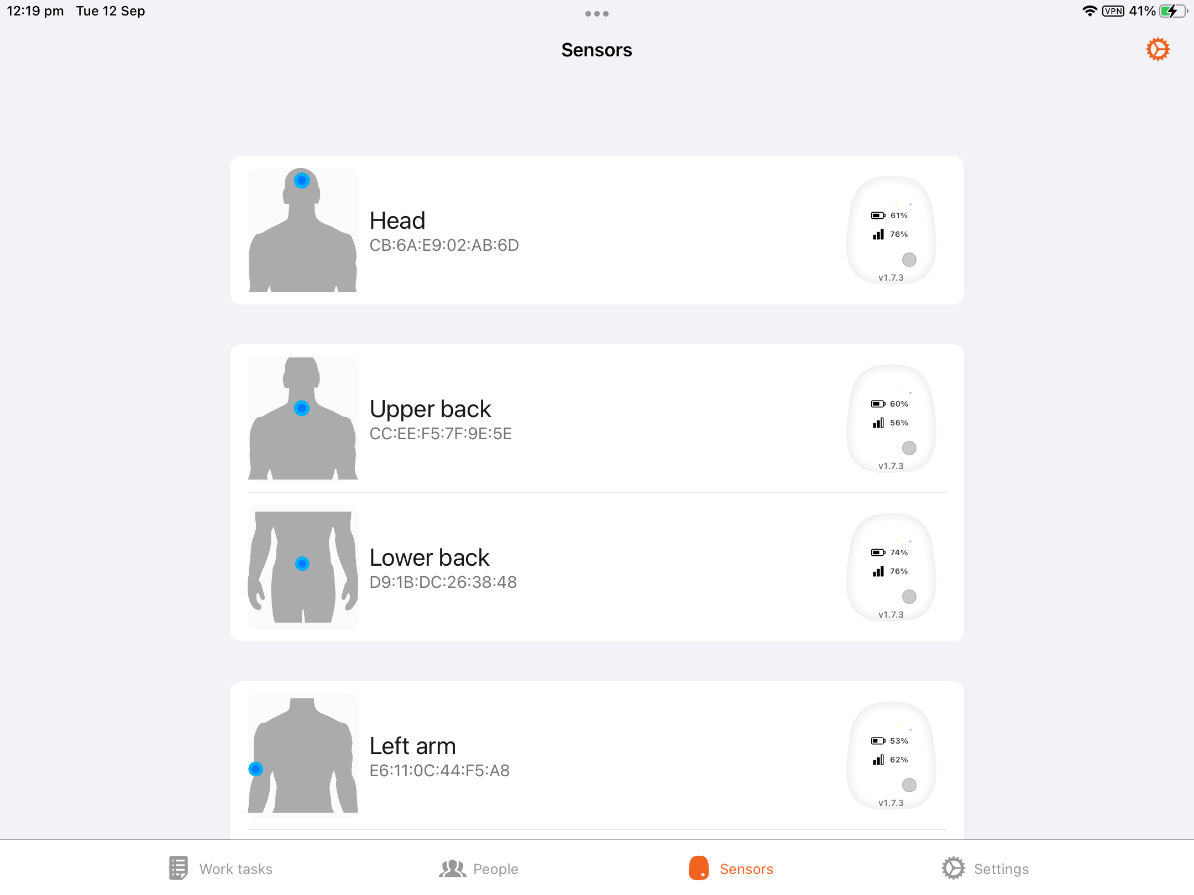
The Etiscope app will then move to the Upper back, Lower back, Right arm, Left arm regions. Repeat the process above by clicking the grey button of the corresponding marked sensor. Once all the sensors are assigned the sensor lights will return to blue and the sensor information will display on the app.
Was this article helpful?
That’s Great!
Thank you for your feedback
Sorry! We couldn't be helpful
Thank you for your feedback
Feedback sent
We appreciate your effort and will try to fix the article